


This isn’t for everybody so I will, hopefully, keep this short in case it doesn’t matter to you.
ChatGPT has an, easy to miss, option to have temporary chats.
What that means is that your chat will not use memory and will not be saved in your chat history.
To start a temporary chat, click on the icon in the upper-right corner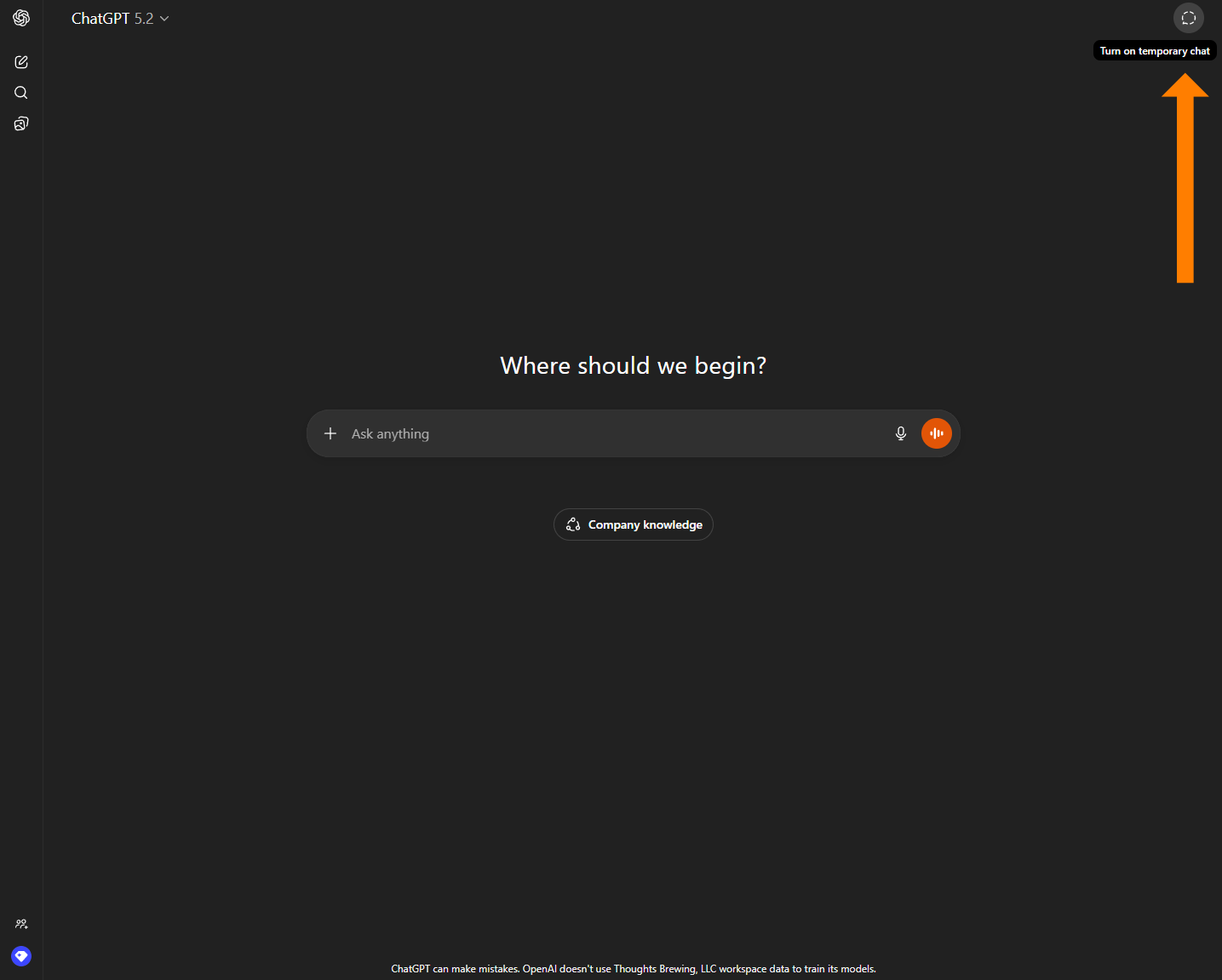
You’ll know that you are in a temporary chat because the “Where should we begin” that is normally in the middle of the screen, will be changed to "Temporary Chat" -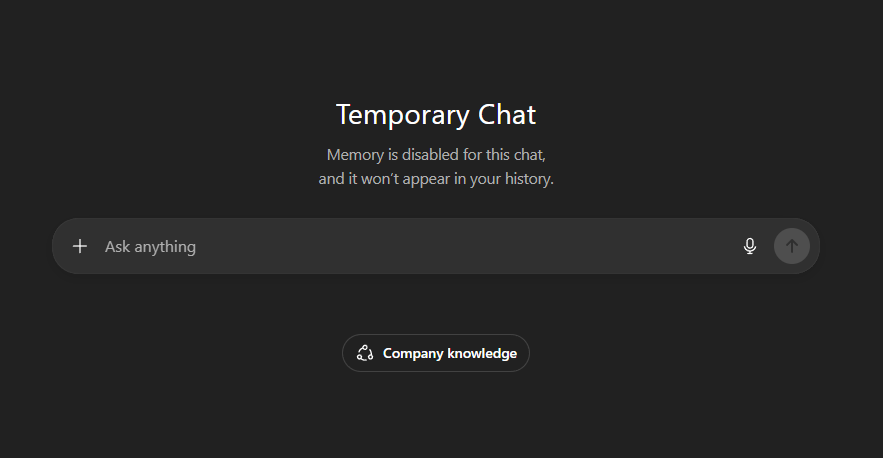
Why would you want to do this?
Here are a few reasons that make sense to me
- You want to chat about something that contradicts something that is saved in memory and this is faster than other options
- You don’t want there to be a chance of elements of this chat being saved to memory
- You are sick of cleaning out chat after chat from your history so you use this for “throw-away” chats
- You are demonstrating something for others (i.e. training session) and it is only relevant until the training is over
There are likely other reasons but I’ll walk away here.

The Blog Explains It. The Channel Shows It.
Short videos, real workflows, fewer assumptions.
Comments