


For such a simple looking interface, they really hide a lot of features in ChatGPT…
This one is fairly new (well, I guess that depends on when you are reading this) and I’m not sure what to call it. I’ve heard others call it an app store. “Store” to me implies that you can buy things which you can’t here, yet. I think that Open AI calls it an app directory so let’s go with that.
What you are now able to do is connect to a library of external applications and have conversations with them and/or get them to make things for you.
If you expand the sidebar in ChatGPT and click on Apps, you can go through the list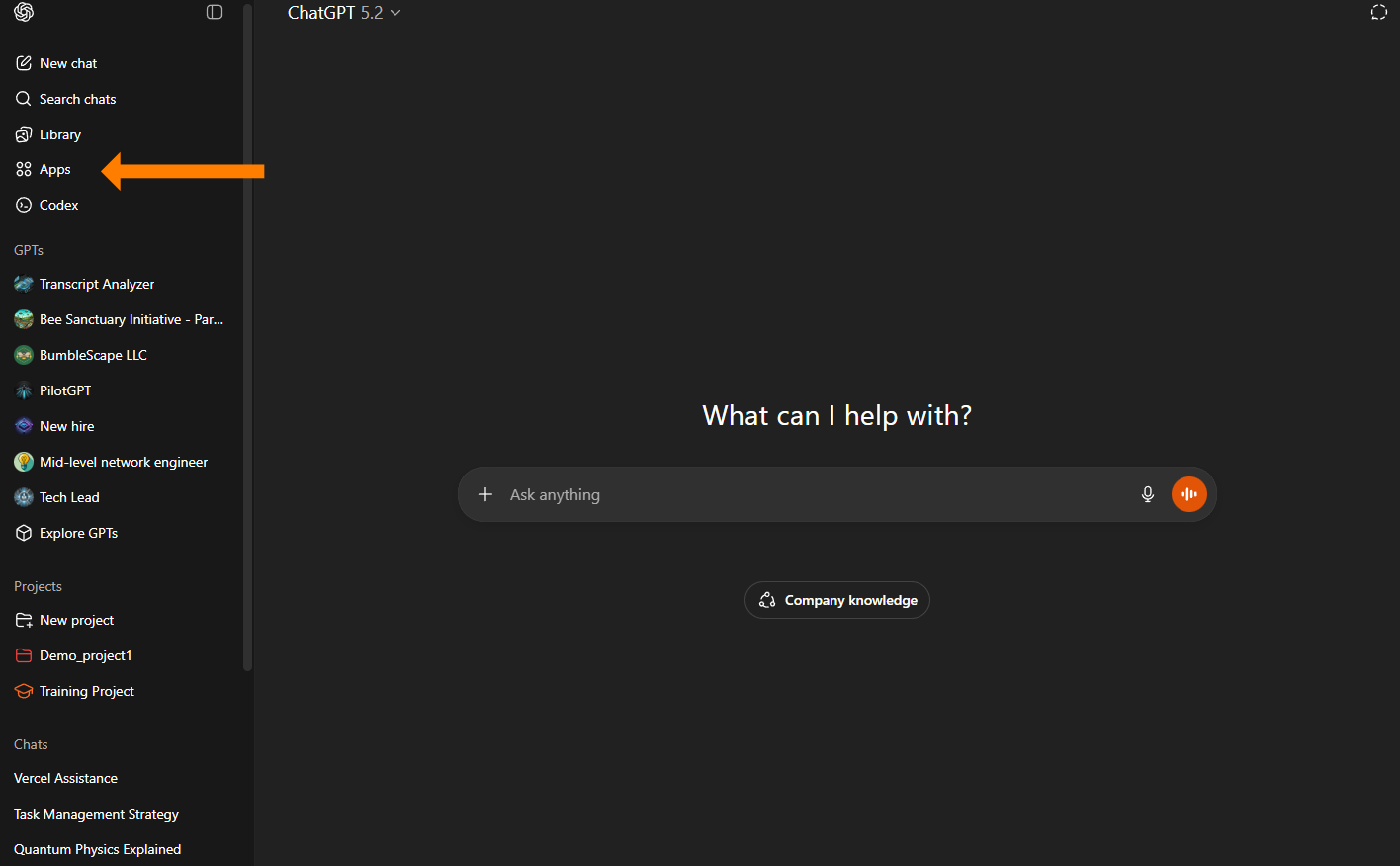
There are actually 3 tabs of apps to go through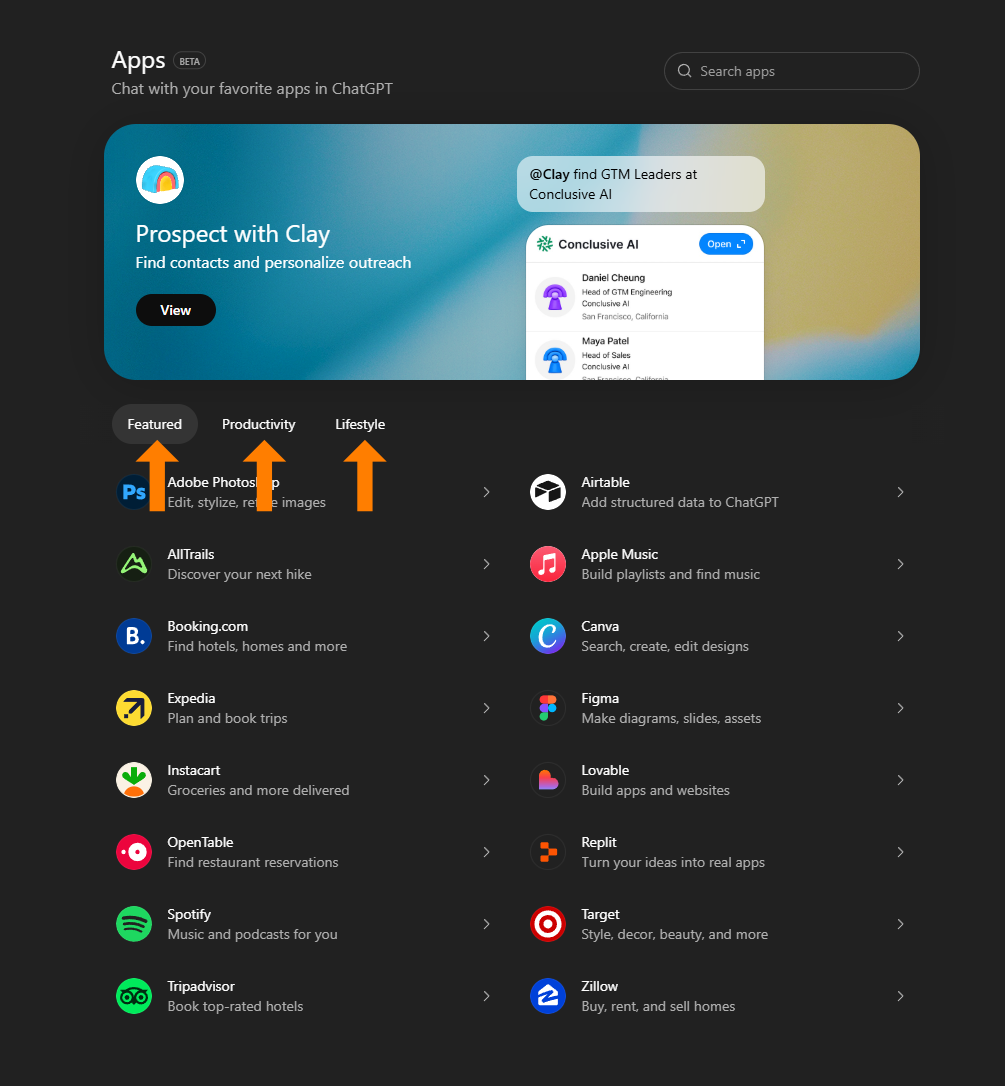
If you want to use an app, you have to connect to it first. Click on the app that you want and then you’ll have an option to connect to it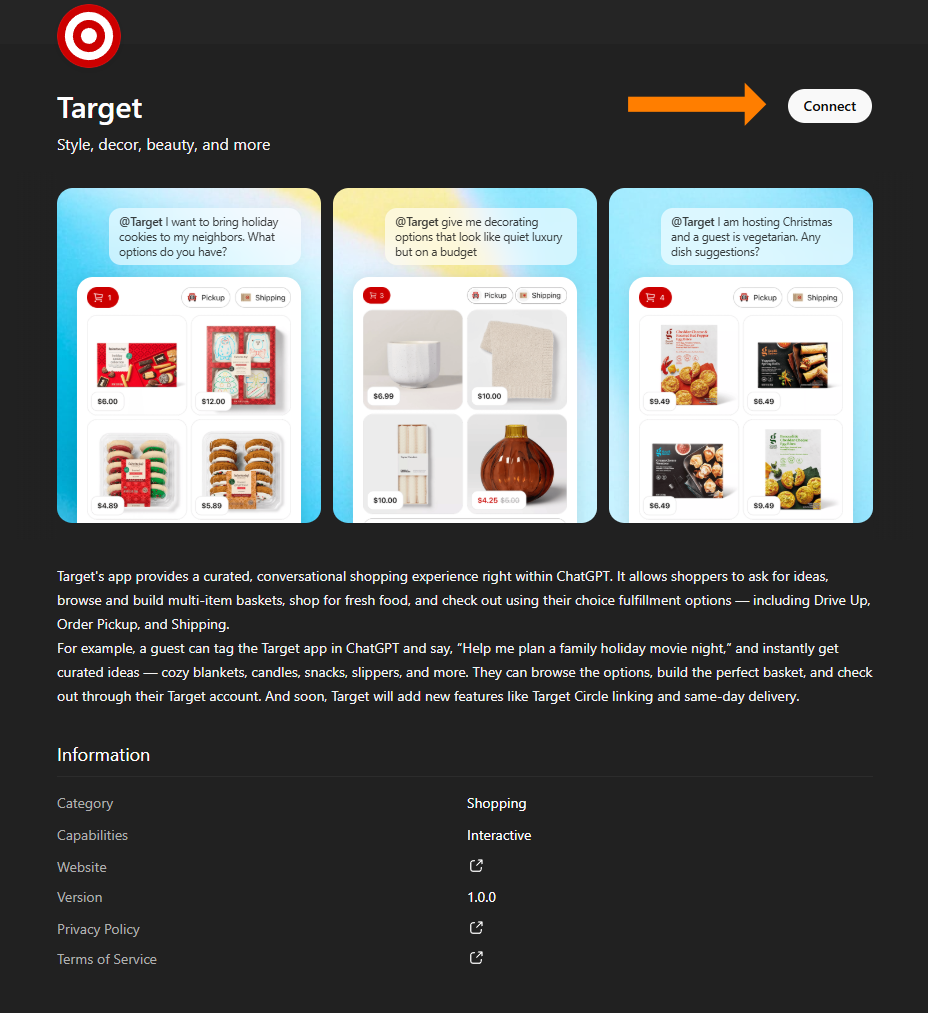
Each app has their own connection rules, privacy policies, data that’s shared, etc. so make sure that you read through what information the apps are sharing with each other. This feature is fairly new and security is often an afterthought…
One of the other ways that you can connect to an app is through the main chat interface. Put in an “@” and then a menu will appear (see below for a video on the "@" options) and you can either type in the name of the app that you want of select it from the list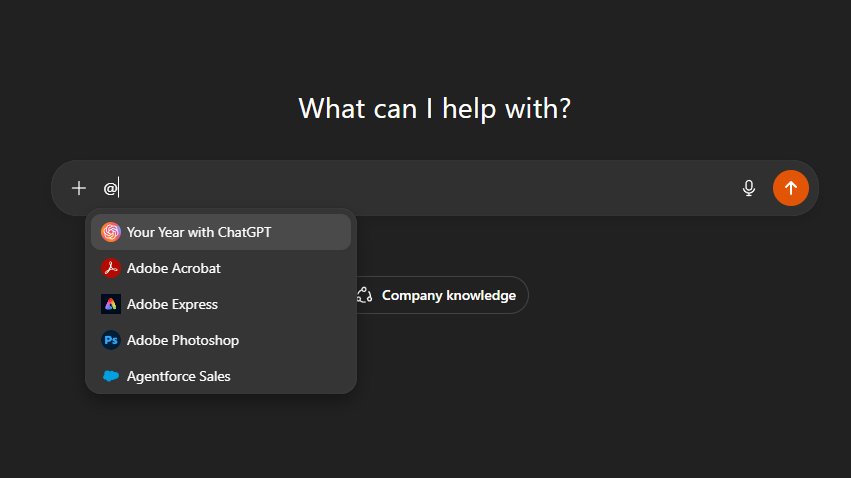
It’s an interesting feature with a lot of options and possibilities. You can even make your own apps if you want.
Here’s the OpenAI help page for apps in case you want more information → https://help.openai.com/en/articles/11487775-apps-in-chatgpt
Going through all of that information here would be way outside of a “quick” tip.
How to use the "@" to call customGPTs Video →
Ready to Use AI for Real Work (Not Just Shopping)?
Next-Level AI Workshops help you build systems, workflows, and habits that actually stick.
Comments