

<div class="statcounter"><a title="Web Analytics" href="https://statcounter.com/" target="_blank"><img class="statcounter" src="https://c.statcounter.com/12795394/0/d64e9537/1/" alt="Web Analytics" referrerPolicy="no-referrer-when-downgrade">

AI Quick Tips 305: Organize your chats with Claude projects

A graphic title card on a dark blue background. On the left is an orange robot head with a speech bubble containing the text 'AI'. To the right is a light blue circle containing the words 'Quick Tips'.

ChatGPT has projects. Gemini has Gems, Perplexity has projects. Claude has, well, also projects.


Of course, they all work slightly differently.


Here is how Claude recommends using projects

“Projects help organize your work and leverage knowledge across multiple conversations. Upload docs, code, and files to create themed collections that Claude can reference again and again.”


Expand the left sidebar in Claude to get to projectsA screenshot of the Claude AI sidebar with a large orange arrow pointing to the "Projects" tab. The main dashboard in the background displays a personalized greeting, "Afternoon, Damien," and a prompt box for starting a new chat.
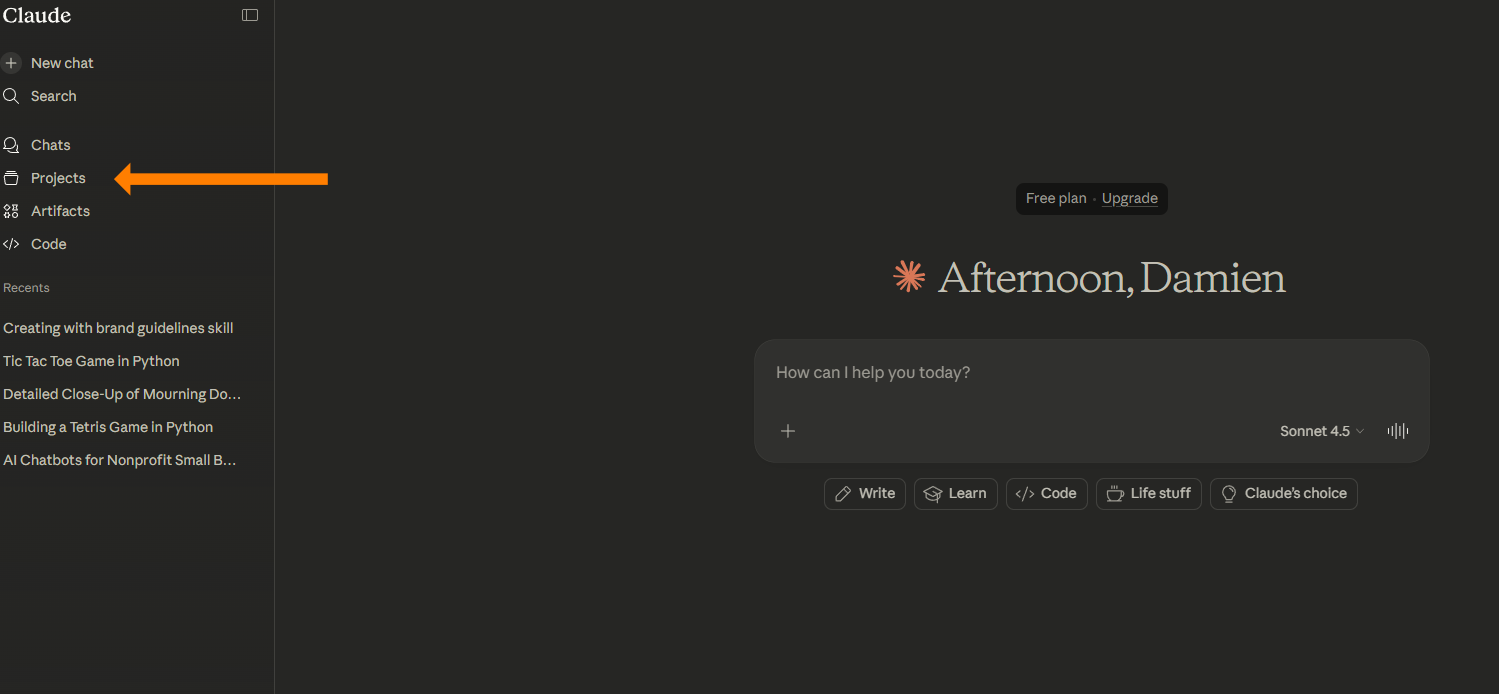
 

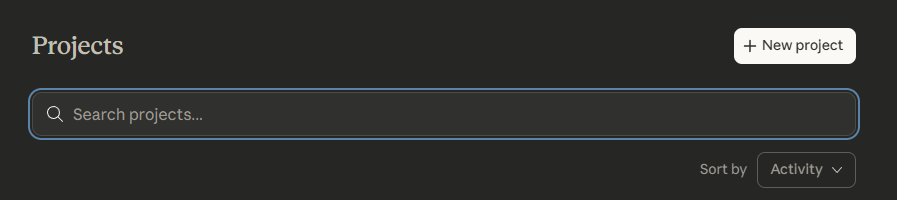
Once you click on projects, you can create a new project by clicking on, well,

New project (they make this pretty straightforward)A close-up view of the Projects management header, featuring a "Search projects..." input field and a prominent white button in the top right corner labeled "+ New project".

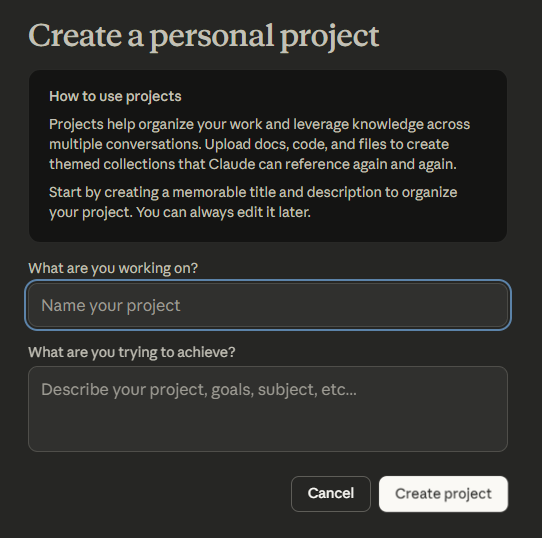
Add a name and description for your project on the next screenA pop-up modal titled "Create a personal project" that explains how the feature helps organize work and leverage knowledge across conversations. The modal contains two text entry fields: "Name your project" and "Describe your project, goals, subject, etc.," with a "Create project" button at the bottom.
 

Now you’ll get a new interface where you can start a new chat, see existing chats (when you have some), add custom instructions to guide Claude’s behavior within this project and/or upload files to be referenced within this projectThe workspace for a project titled "Test_project1," which includes a central "Reply..." chat box. A right-hand sidebar provides dedicated areas to add "Instructions" for tailoring AI responses and a "Files" section for uploading PDFs, documents, or other reference text.
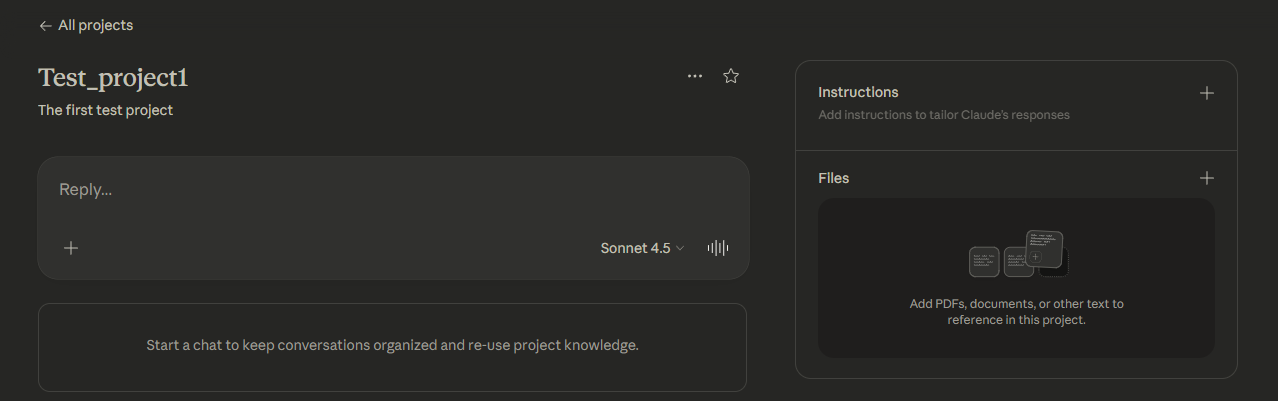
 

You can use models and use voice mode just like in a regular chat.


You can actually get some pretty complicated and sophisticated setups in there, but I think that this was a good intro.


Let us know if you have any questions.


Want to get started? Watch this video for the basics:
 

Graphic contrasting

Stop Testing Tools. Start Building Systems.

Next-Level AI Workshops show you how to turn AI into repeatable leverage.

Comments

Related posts