

.png)
Answering your questions about business and technology
Question
How do I know if I have the new ChatGPT images feature or if I’m still using the old one?
~ Rob
Answer
Hi Rob,
My setup is ideal for this question right now because my free account has access to the new images feature and my paid account doesn’t (seems backwards but I digress…)
First, expand the sidebar by clicking on the logo in the upper left corner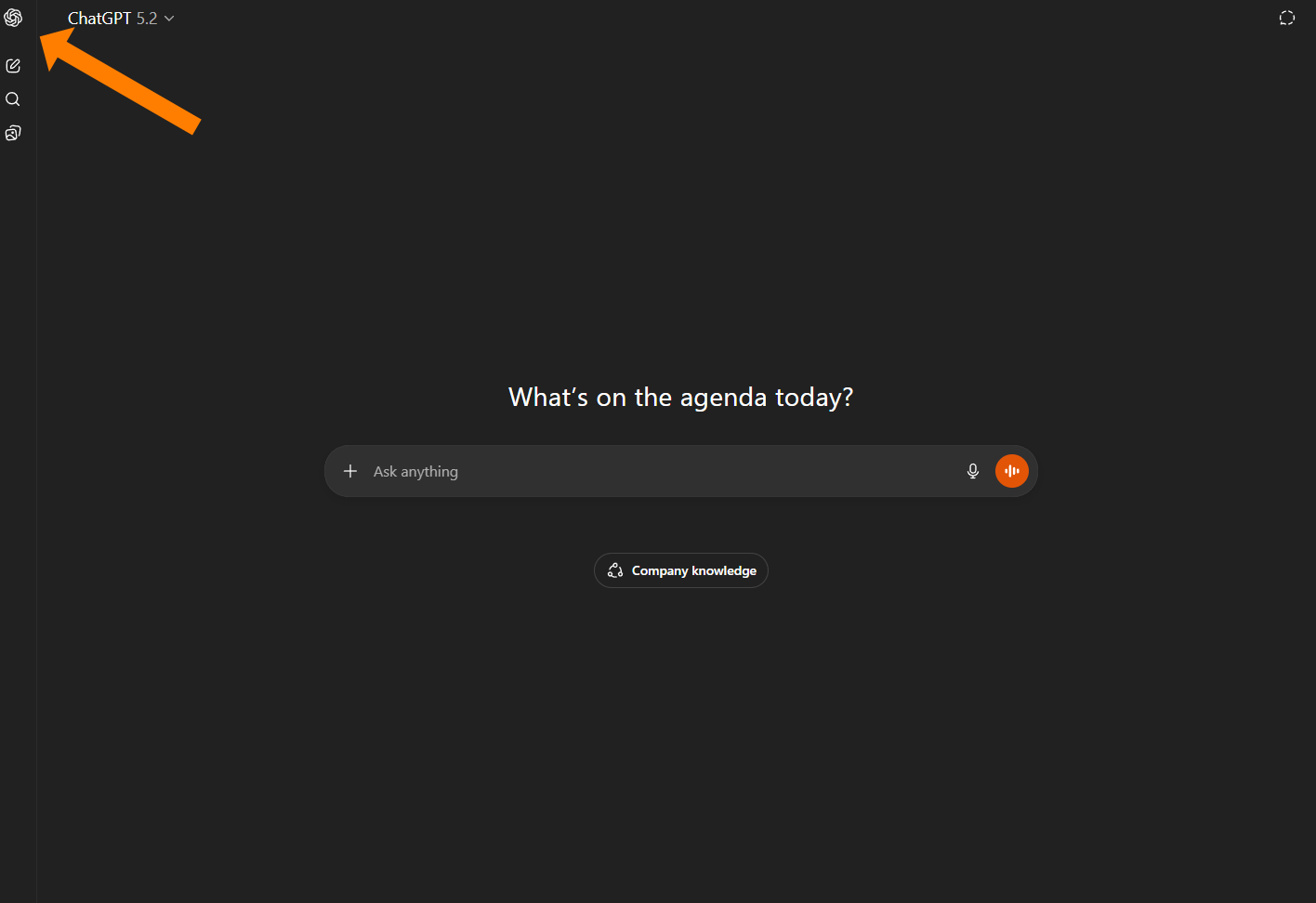
There should be a section in the sidebar named “Images”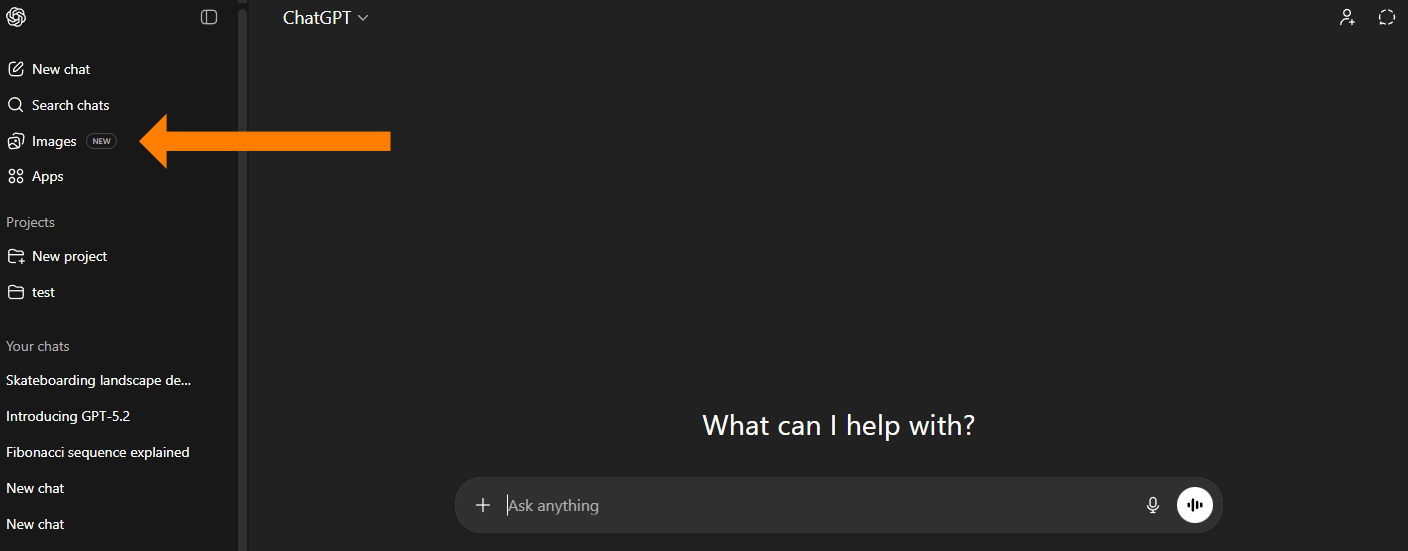
Click on Images and you will see something like this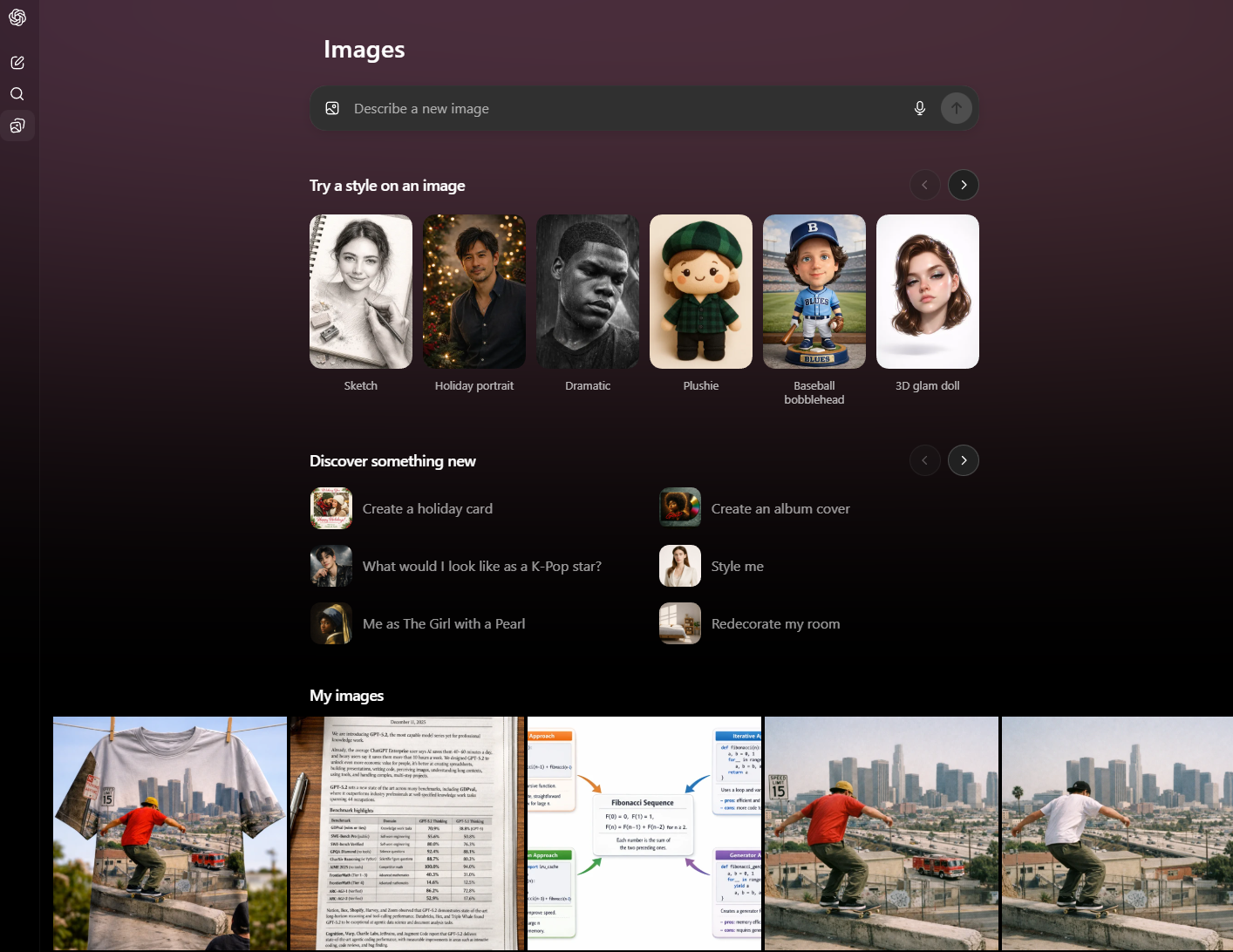
That’s it. If you don’t have the images section in the sidebar, you probably don’t have the feature yet.
Hope that helps.
~ Damien
P.S. I made a quick video, since it is a little easier to follow:
.png?width=600&height=496&name=ChatGPT%20Course%20Blog%20CTA%20-%2020%20(1).png)
Prefer a Clear Path Instead of Guessing?
Explore self-paced courses built for real-world AI use.
Comments