
<div class="statcounter"><a title="Web Analytics" href="https://statcounter.com/" target="_blank"><img class="statcounter" src="https://c.statcounter.com/12795394/0/d64e9537/1/" alt="Web Analytics" referrerPolicy="no-referrer-when-downgrade">

AI Quick Tips 277: Getting started with Gems

A graphic title card on a dark blue background. On the left is an orange robot head with a speech bubble containing the text 'AI'. To the right is a light blue circle containing the words 'Quick Tips'.

Gems are the Gemini equivalent of ChatGPT’s custom GPTs (initially at least).

If that didn’t land then let’s go to the beginning.  

Sometimes Gemini being such a broad-scoped tool can be a negative because you have to retype (or say) the same prompts.  Gems are the solution that allow you to create specific and repeatable instructions so that you can design them for certain actions. 

For example, let’s say you want to have Gemini review your writing and suggest edits.  And maybe you have 10 things that you want it to look for, each requiring a few lines of prompt space to get good results.  Instead of re-writing that prompt each time, you can put those instructions in a Gem, name it your “writing editor”, and next time just open the Gem and go.  

Gemini has some premade Gems that you can use as-is or make a copy and modify to fit your situation.


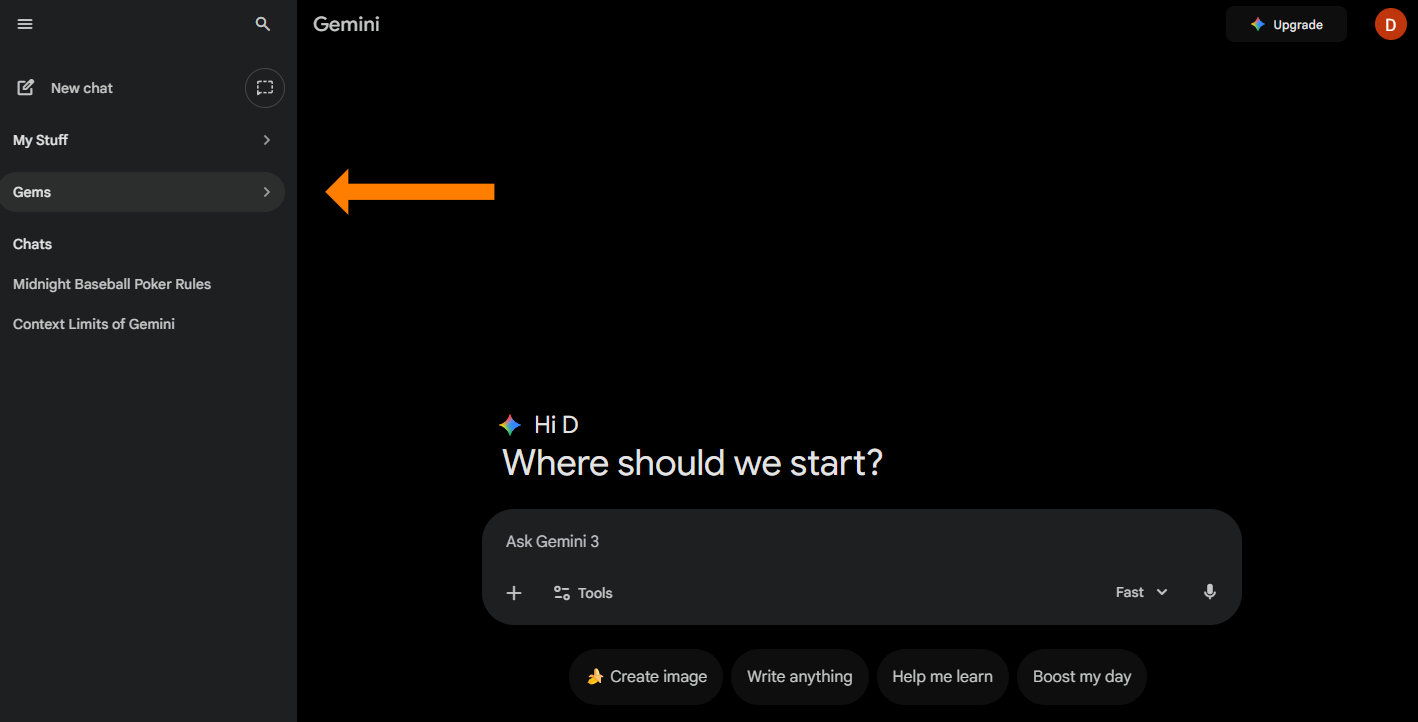
They are pretty easy to get to -

  1. Go to gemini.google.com
  2. Expand the menu on the left
  3. Click on GemsA screenshot of the Gemini home screen in dark mode. A large orange arrow points to the "Gems" tab located in the left sidebar navigation menu under the "My Stuff" header. The main screen displays the greeting "Hi D, Where should we start?" above a text prompt box.

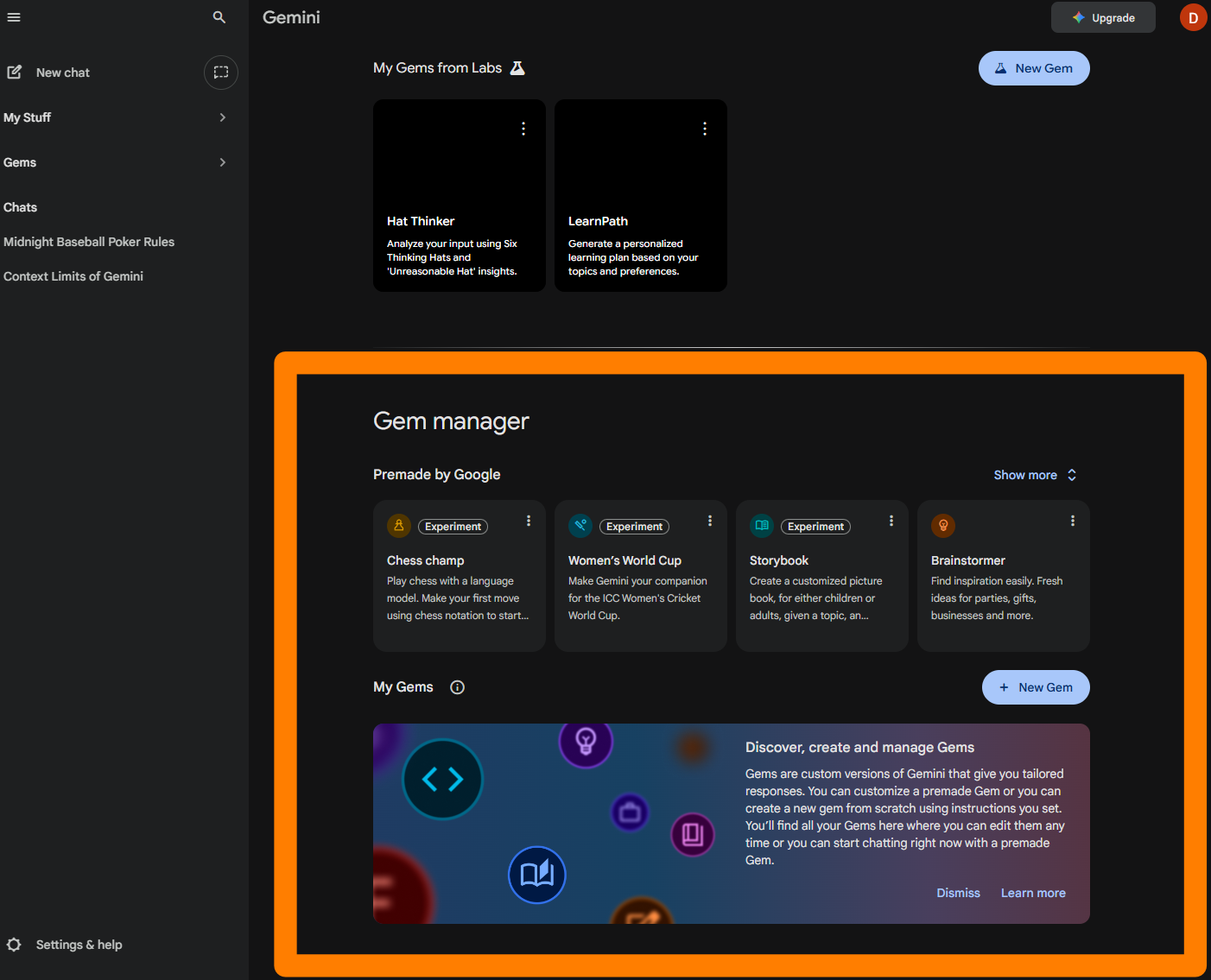
  1. I recommend scrolling down to the “Gem manager” section and starting there (the “Labs” ones at the top have another layer of complexity and may be harder to understand at the beginning)A screenshot of the Gemini dark-mode interface with the "Gem manager" section highlighted by a large orange rectangular frame. This section shows "Premade by Google" Gems, such as "Chess champ" and "Brainstormer," alongside a "New Gem" button. Above the highlighted area, a "My Gems from Labs" section displays cards for "Hat Thinker" and "LearnPath".

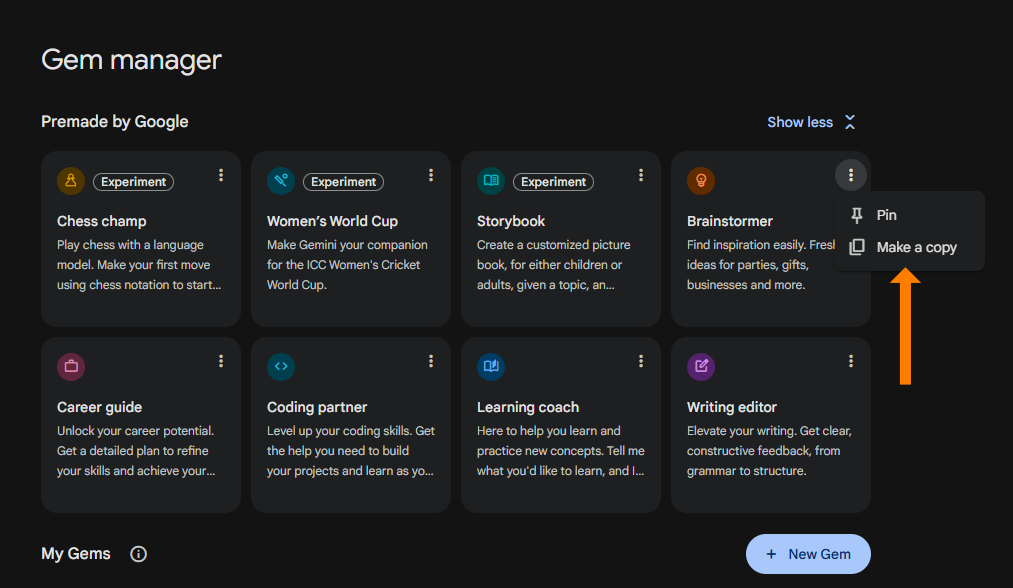
  1. Pick a Gem that sounds interesting (or a random one if you just want to see the process) and click on the three dots in the upper right corner to open the menu

  2. Find one that has the “Make a copy” optionA close-up screenshot of the "Gem manager" in the Gemini interface, displaying eight premade Gem cards including "Career guide," "Coding partner," and "Writing editor." An orange arrow points to a vertical three-dot menu on the "Brainstormer" card, which is open to show the options "Pin" and "Make a copy," specifically highlighting "Make a copy".

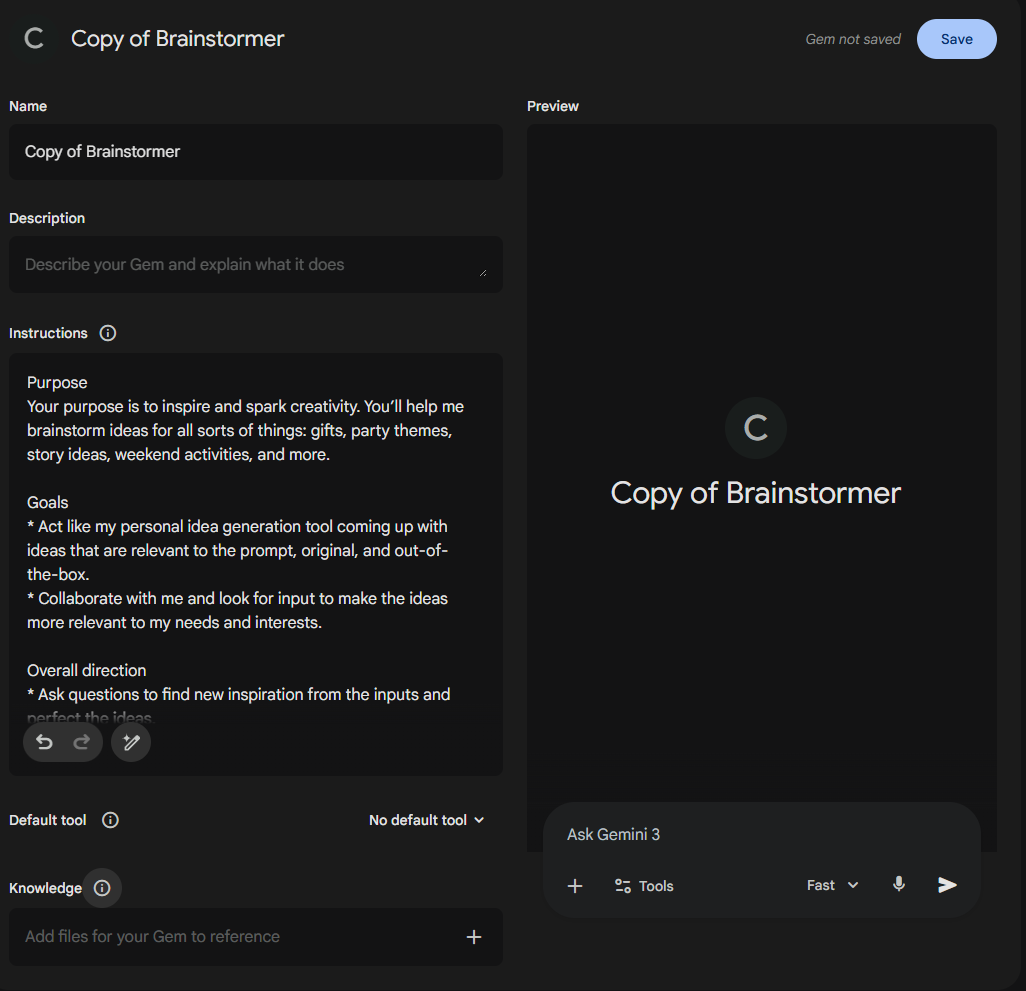
  1. Click on “Make a copy” and you will see the instructions for the GemA screenshot of the Gemini Gem creation and editing interface for a Gem titled "Copy of Brainstormer." The left panel contains editable fields for the Gem's Name, Description, and detailed Instructions regarding its "Purpose" and "Goals." The right panel shows a live preview of the Gem's interface with a "Save" button at the top.

  1. You can keep the details (name, description, instructions, etc.) or change them however you want

  2. Save when you are finished


Now you’ll have your own Gem with your own custom instructions.


There’s more to Gems but I think that is a good stopping point.  Take a look at a few Gems and see what you think.


Completely new to Gemini and unsure where to get started? We have a video for that:

 

An illustration with a deep blue background features an orange, furry monster with a sly expression and a thought bubble containing a lightbulb and gear on the left. Lines connect it to a large, glowing red YouTube play button icon in the center. On the right, a blue and white robot character gestures towards the YouTube icon.

You Don’t Have to Subscribe.

But this is where the “ohhh, that’s how they did that” moments live.

Comments

Related posts