
<div class="statcounter"><a title="Web Analytics" href="https://statcounter.com/" target="_blank"><img class="statcounter" src="https://c.statcounter.com/12795394/0/d64e9537/1/" alt="Web Analytics" referrerPolicy="no-referrer-when-downgrade">

AI Quick Tips 279: Use NotebookLM notebooks as context in Gemini app

A graphic title card on a dark blue background. On the left is an orange robot head with a speech bubble containing the text 'AI'. To the right is a light blue circle containing the words 'Quick Tips'.
 

You read the title.  Did you know that you could do this?  


To be fair, you might not be able to do it. 

Google is famous for testing features on live accounts.  For example, my free Gemini account can see NotebookLM notebooks and my paid account cannot.  Seems backwards to me but what do I know…

Prefer video? Watch here:


It’s really easy to do so let’s start with that.

  1. Go to gemini.google.com
  2. Click on the plus on the bottom left of the prompting area
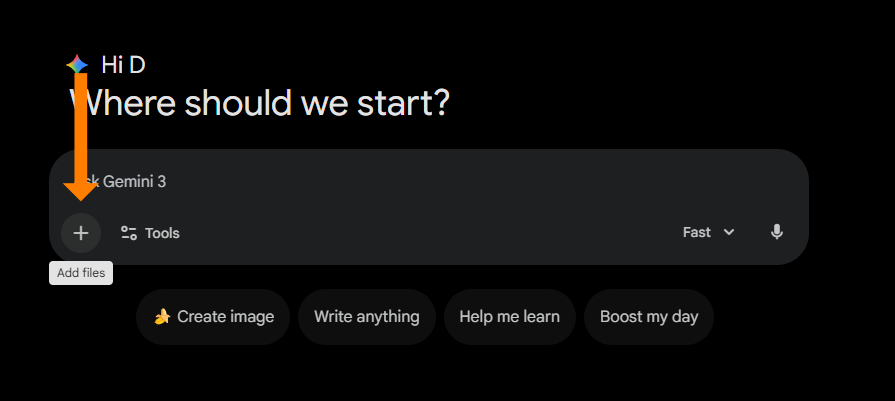
    A screenshot of the Gemini AI interface prompt area. A large orange arrow points vertically down to the plus (+) icon on the left side of the input bar. A small white tooltip box labeled "Add files" appears directly below the icon.
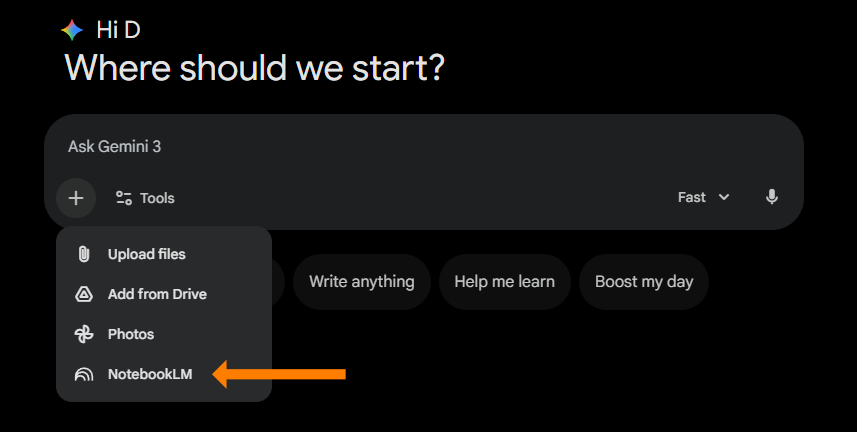
  3. Select NotebookLM
    A screenshot of the Gemini AI prompt menu. A dropdown list displays options for "Upload files," "Add from Drive," "Photos," and "NotebookLM." A large orange arrow points horizontally to the "NotebookLM" option at the bottom of the list.
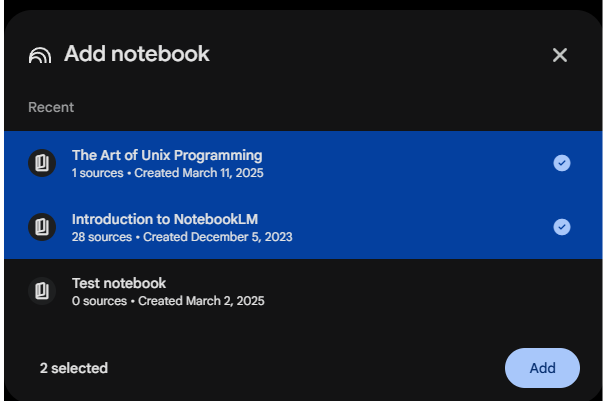
  4. Select which notebook(s) you want to use and click AddYes, you can choose more than one
    A screenshot of a pop-up window titled "Add notebook." Three items are listed under "Recent": "The Art of Unix Programming," "Introduction to NotebookLM," and "Test notebook." The first two items are highlighted in blue with checkmarks to indicate they are selected. A blue "Add" button is visible in the bottom right corner.
  5. Verify that the notebooks that you want have been added to the prompt
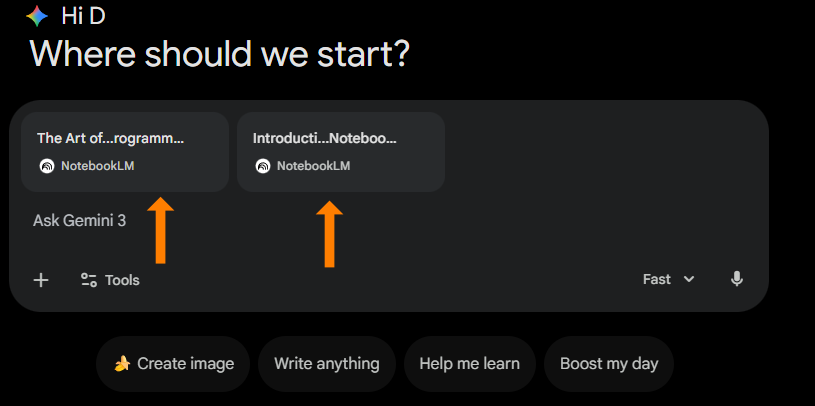
    A screenshot of the Gemini AI interface in dark mode. Inside the prompt input area, two document cards labeled with the NotebookLM icon are attached. Two orange arrows point upward to these attachments: one titled "The Art of...rogramm..." and the other "Introducti...Noteboo...".


At this point you can prompt like you normally would. 


The other side of this is,  what did you actually do?  If you are familiar with NotebookLM then you are probably gone already.   If not, NotebookLM is one of Google’s other AI tools that lets you create notebooks, add sources, and chat with those sources or create artifacts from them (i.e. quizzes, slide decks, infographics, etc.)


People have been requesting the option to use their NotebookLM notebooks as context for a while and it looks like Google was listening.  


Now you can choose which model you use with your notebooks, use canvas, etc.  


If you haven’t used NotebookLM yet, I recommend going to notebooklm.google.com and checking it out.  


We have a video to help you get started in less than 5 minutes.
A cartoon illustration shows an orange monster character holding a tablet with a

Ready to Use AI for Real Work?

Next-Level AI Workshops help you build systems, workflows, and habits that actually stick.

Comments

Related posts