---
title: "AI Quick Tips 304: Create custom reports in NotebookLM"
description: Learn how to create custom reports in NotebookLM, Google's AI tool, and explore new features and workarounds for deprecated report formats.
image: https://thoughtsbrewing.com/hubfs/AI%20Quick%20Tips-1.jpg
---
[](https://www.thoughtsbrewing.com/)
Search toggle
- [Home](https://thoughtsbrewing.com/en-us/home)
- [About](https://thoughtsbrewing.com/en-us/about)
About
- [About Us](https://thoughtsbrewing.com/en-us/about)
- [FAQs](https://thoughtsbrewing.com/en-us/faqs)
- [Blog](https://thoughtsbrewing.com/blog)
Blog
- [Blog Subscription](https://thoughtsbrewing.com/en-us/blog-subscription)
- [Ask A Question](https://thoughtsbrewing.com/en-us/ask-us-anything-business-tech)
- [Blog Home](https://thoughtsbrewing.com/blog)
- [AI Articles](https://thoughtsbrewing.com/blog/tag/ai)
- [Articles by Damien](https://thoughtsbrewing.com/blog/author/damien)
- [Articles by Danielle](https://thoughtsbrewing.com/blog/author/danielle)
- [AI Training/Courses](https://thoughtsbrewing.com/en-us/courses)
AI Training/Courses
- [Next-Level AI Workshops](https://thoughtsbrewing.com/en-us/next-level-ai-workshops)
- [Free ChatGPT Email Course](https://thoughtsbrewing.com/en-us/chatgpt-kickstarter-email-course)
- [Request a YouTube Video](https://thoughtsbrewing.com/en-us/youtube-video-request-page)
- [AI Quick Tips](https://thoughtsbrewing.com/blog/tag/ai-quick-tips)
- [Writing Style Guide Template](https://thoughtsbrewing.com/en-us/writing-style-guide-template)
- [Human + AI Playbook Template](https://thoughtsbrewing.com/en-us/human-ai-playbook)
- [NotebookLM Masterclass](https://maven.com/thoughts-brewing-llc/learn-notebooklm-in-a-weekend-2-cohort)
- [Fractional COO/CTO Services](https://thoughtsbrewing.com/en-us/fractional-coo/cto-services)
- [Contact](https://thoughtsbrewing.com/en-us/contact)
[Contact](https://thoughtsbrewing.com/en-us/contact)
[](https://www.thoughtsbrewing.com/)
- [Home](https://thoughtsbrewing.com/en-us/home)
- [About](https://thoughtsbrewing.com/en-us/about)
About
- [About Us](https://thoughtsbrewing.com/en-us/about)
- [FAQs](https://thoughtsbrewing.com/en-us/faqs)
- [Blog](https://thoughtsbrewing.com/blog)
Blog
- [Blog Subscription](https://thoughtsbrewing.com/en-us/blog-subscription)
- [Ask A Question](https://thoughtsbrewing.com/en-us/ask-us-anything-business-tech)
- [Blog Home](https://thoughtsbrewing.com/blog)
- [AI Articles](https://thoughtsbrewing.com/blog/tag/ai)
- [Articles by Damien](https://thoughtsbrewing.com/blog/author/damien)
- [Articles by Danielle](https://thoughtsbrewing.com/blog/author/danielle)
- [AI Training/Courses](https://thoughtsbrewing.com/en-us/courses)
AI Training/Courses
- [Next-Level AI Workshops](https://thoughtsbrewing.com/en-us/next-level-ai-workshops)
- [Free ChatGPT Email Course](https://thoughtsbrewing.com/en-us/chatgpt-kickstarter-email-course)
- [Request a YouTube Video](https://thoughtsbrewing.com/en-us/youtube-video-request-page)
- [AI Quick Tips](https://thoughtsbrewing.com/blog/tag/ai-quick-tips)
- [Writing Style Guide Template](https://thoughtsbrewing.com/en-us/writing-style-guide-template)
- [Human + AI Playbook Template](https://thoughtsbrewing.com/en-us/human-ai-playbook)
- [NotebookLM Masterclass](https://maven.com/thoughts-brewing-llc/learn-notebooklm-in-a-weekend-2-cohort)
- [Fractional COO/CTO Services](https://thoughtsbrewing.com/en-us/fractional-coo/cto-services)
- [Contact](https://thoughtsbrewing.com/en-us/contact)
[](https://www.thoughtsbrewing.com/)
Search toggle
[Contact](https://thoughtsbrewing.com/en-us/contact)
- [Home](https://thoughtsbrewing.com/en-us/home)
- [About](https://thoughtsbrewing.com/en-us/about)
About
- [About Us](https://thoughtsbrewing.com/en-us/about)
- [FAQs](https://thoughtsbrewing.com/en-us/faqs)
- [Blog](https://thoughtsbrewing.com/blog)
Blog
- [Blog Subscription](https://thoughtsbrewing.com/en-us/blog-subscription)
- [Ask A Question](https://thoughtsbrewing.com/en-us/ask-us-anything-business-tech)
- [Blog Home](https://thoughtsbrewing.com/blog)
- [AI Articles](https://thoughtsbrewing.com/blog/tag/ai)
- [Articles by Damien](https://thoughtsbrewing.com/blog/author/damien)
- [Articles by Danielle](https://thoughtsbrewing.com/blog/author/danielle)
- [AI Training/Courses](https://thoughtsbrewing.com/en-us/courses)
AI Training/Courses
- [Next-Level AI Workshops](https://thoughtsbrewing.com/en-us/next-level-ai-workshops)
- [Free ChatGPT Email Course](https://thoughtsbrewing.com/en-us/chatgpt-kickstarter-email-course)
- [Request a YouTube Video](https://thoughtsbrewing.com/en-us/youtube-video-request-page)
- [AI Quick Tips](https://thoughtsbrewing.com/blog/tag/ai-quick-tips)
- [Writing Style Guide Template](https://thoughtsbrewing.com/en-us/writing-style-guide-template)
- [Human + AI Playbook Template](https://thoughtsbrewing.com/en-us/human-ai-playbook)
- [NotebookLM Masterclass](https://maven.com/thoughts-brewing-llc/learn-notebooklm-in-a-weekend-2-cohort)
- [Fractional COO/CTO Services](https://thoughtsbrewing.com/en-us/fractional-coo/cto-services)
- [Contact](https://thoughtsbrewing.com/en-us/contact)
What are you looking for?
# AI Quick Tips 304: Create custom reports in NotebookLM
March 24, 2026
 [Damien Griffin](https://thoughtsbrewing.com/blog/author/damien)

NotebookLM is Google’s AI tool that is “grounded in your sources”. It basically hallucinates less (almost never) because it only pulls information from the sources that you identify and select. We have a lot of content about it if you’ve never used it before and want to get up to speed. [We also train on it if you want to get up to speed fast…](https://thoughtsbrewing.com/en-us/courses)
Anyway, like most AI tools, NotebookLM gets changed often. One of the changes that a lot of people miss is their reports artifact(s).
They used to have multiple types of reports listed out individually, like briefing docs, timelines, FAQs, study guides, etc. Now they’ve gotten rid of some of them (sorry timelines and FAQs) and consolidated everything into one button, called “Reports”.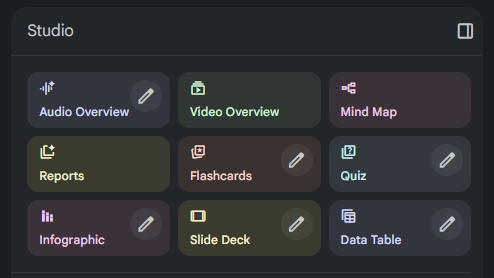
Unlike some of the other buttons, when you click on Reports, you get a new window - Create report - where you can select from various report types: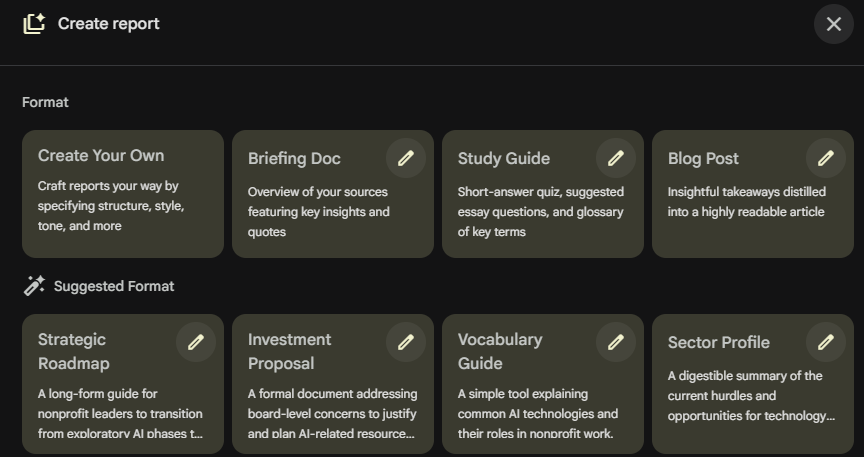
If you choose the Create Your Own option, you can prompt Gemini to create any kind of report that you can describe.
This can be useful if what you want isn’t built-in or one of the “Suggested Formats”. This is the create report screen -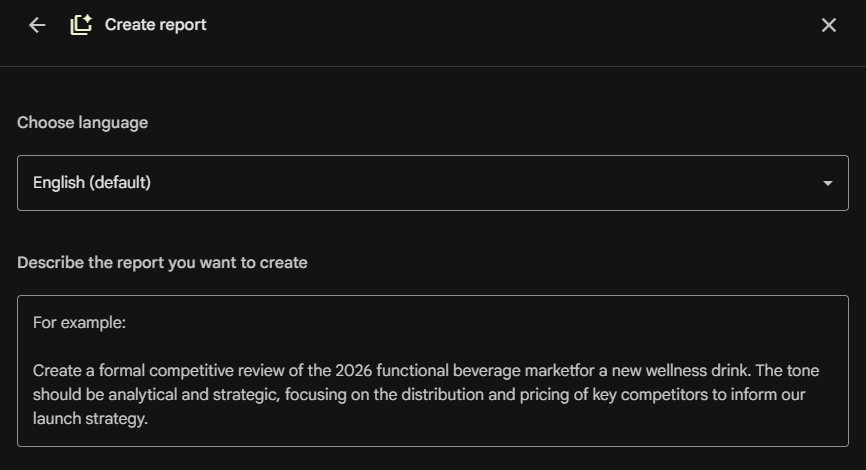
This can also be used to create one of the report formats that they’ve gotten rid of.
---
#### There are some workarounds for Timelines and FAQs. I made a video for each of them.
## Ready to Use AI for Real Work (Not Just Recipes)?
Next-Level AI Workshops help you build systems, workflows, and habits that actually stick.
[Apply Now →](https://thoughtsbrewing.com/en-us/next-level-ai-workshops)
### Share:
[Share on Facebook](https://www.facebook.com/sharer/sharer.php?u=https%3A%2F%2Fthoughtsbrewing.com%2Fblog%2Fai-quick-tips-304-create-custom-reports-in-notebooklm%3Futm_medium%3Dsocial%26utm_source%3Dfacebook) [Share on LinkedIn](https://www.linkedin.com/sharing/share-offsite/?url=https%3A%2F%2Fthoughtsbrewing.com%2Fblog%2Fai-quick-tips-304-create-custom-reports-in-notebooklm%3Futm_medium%3Dsocial%26utm_source%3Dlinkedin) [Share on X](https://twitter.com/intent/tweet?url=https%3A%2F%2Fthoughtsbrewing.com%2Fblog%2Fai-quick-tips-304-create-custom-reports-in-notebooklm%3Futm_medium%3Dsocial%26utm_source%3Dtwitter&text=AI+Quick+Tips+304%3A+Create+custom+reports+in+NotebookLM)
[AI Quick Tips](https://thoughtsbrewing.com/blog/tag/ai-quick-tips), [AI](https://thoughtsbrewing.com/blog/tag/ai), [Google](https://thoughtsbrewing.com/blog/tag/google), [Gemini](https://thoughtsbrewing.com/blog/tag/gemini), [NotebookLM](https://thoughtsbrewing.com/blog/tag/notebooklm)
## Comments
## Related posts
##### Menu
- [Home](https://thoughtsbrewing.com/en-us/home)
- [About](https://thoughtsbrewing.com/en-us/about)
- [Blog](https://thoughtsbrewing.com/blog)
- [AI Training/Courses](https://thoughtsbrewing.com/en-us/courses)
- [Fractional COO/CTO Services](https://thoughtsbrewing.com/en-us/fractional-coo/cto-services)
- [Contact](https://thoughtsbrewing.com/en-us/contact)
[Privacy Policy](https://thoughtsbrewing.com/en-us/privacy-policy) | [Terms of Use](https://thoughtsbrewing.com/en-us/terms-of-use) | Herndon, VA | 703-296-9912 | ©2022-2026 Copyright Thoughts Brewing, LLC
[Follow us on LinkedIn](https://www.linkedin.com/company/thoughts-brewing-llc) [Follow us on Facebook](https://www.youtube.com/@thoughtsbrewingllc) [Find us on Google](https://g.co/kgs/YhpnVFp) [Find us on Yelp](https://www.yelp.com/biz/thoughts-brewing-herndon) [Follow us on Facebook](https://www.facebook.com/thoughtsbrewingllc)
```json
{
"@context" : "https://schema.org",
"@type" : "BlogPosting",
"author" : {
"@type" : "Person",
"name" : "Damien Griffin",
"url" : "https://thoughtsbrewing.com/blog/author/damien"
},
"dateModified" : "2026-03-24T16:45:00.274Z",
"datePublished" : "2026-03-24T16:45:00.000Z",
"headline" : "AI Quick Tips 304: Create custom reports in NotebookLM",
"image" : [ "https://thoughtsbrewing.com/hubfs/AI%20Quick%20Tips-1.jpg" ],
"mainEntityOfPage" : {
"@id" : "https://thoughtsbrewing.com/blog/ai-quick-tips-304-create-custom-reports-in-notebooklm",
"@type" : "WebPage"
},
"publisher" : {
"@type" : "Organization",
"logo" : {
"@type" : "ImageObject",
"url" : "https://thoughtsbrewing.com/hubfs/Thoughts%20Brewing%20Logo_Round_Final_Light%20Blue_Transparent%20Background-1.png"
},
"name" : "Thoughts Brewing, LLC"
}
}
```
```json
{
"@context" : "https://schema.org",
"@type" : "Organization",
"address" : {
"@type" : "PostalAddress",
"addressCountry" : "United States of America",
"addressLocality" : "Herndon",
"addressRegion" : "Virginia",
"postalCode" : "20170",
"streetAddress" : "205 Van Buren Street, Suite 120"
},
"email" : "contact@thoughtsbrewing.com",
"logo" : {
"@type" : "ImageObject",
"url" : "https://24461783.fs1.hubspotusercontent-na1.net/hubfs/24461783/Thoughts%20Brewing%20Logo_Round_Final_Light%20Blue_Transparent%20Background-1.png"
},
"name" : "Thoughts Brewing, LLC",
"telephone" : "703-296-9912",
"url" : "https://thoughtsbrewing.com"
}
```