


Yeah, so do I. This new feature doesn’t work exactly the way that I would like (yet), but it is better than nothing and a step in the right direction (I think).
Basically, once you add five or more sources, you will have an option to have NotebookLM auto-label your sources. The “auto” is what some people aren’t liking about it. So far, it’s worked well for me, but it would be nice to manually move some things around. Since NotebookLM is still technically a Google Labs project (meaning that they could get rid of it at any time or drastically change it), I will accept this update.
Anyway, once you add 5 or more sources, you get this icon right above your sources -

This is what it looks like with some sources underneath it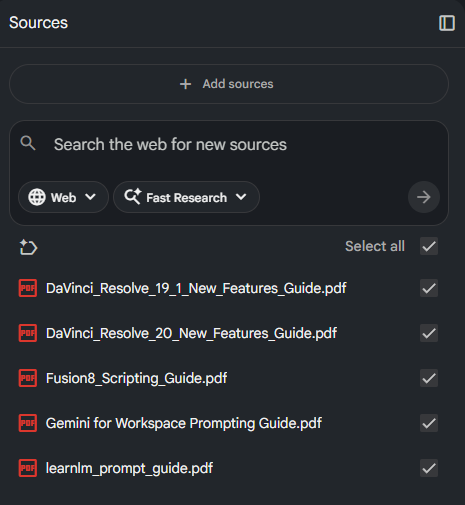
The icon is there because this feature is optional. You don’t have to organize and label your sources. If you choose to, click on the icon and have it organize your sources.
After a short time, it will do something like this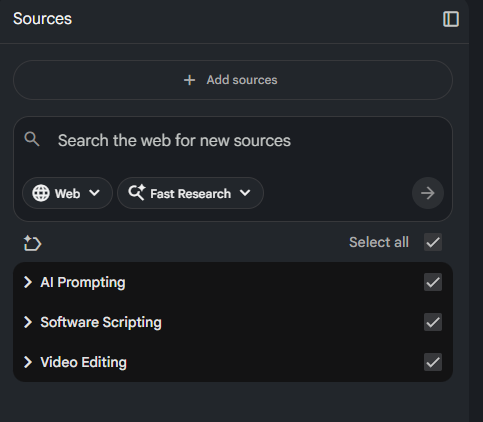
The categories can also expand if clicked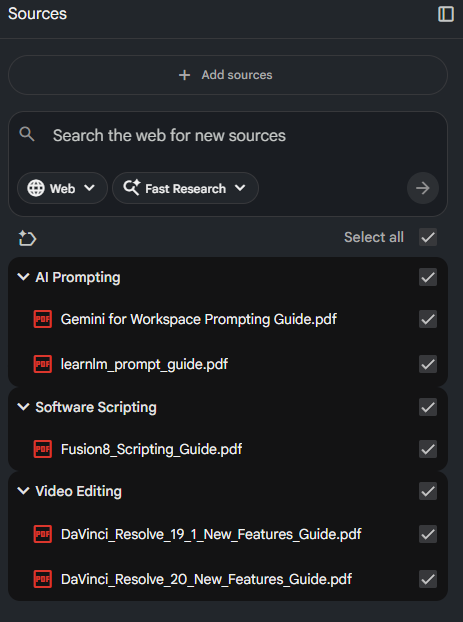
This example only has 5 sources, but imagine if you have 50, 100, or 500 sources (if your plan supports that many). This can really help to clean things up. You also gain the ability to select or de-select by category. So if you want to exclude 100 sources from a chat it can be much easier.
Two things to note from my experiences with this so far -
- It didn’t work on existing notebooks. I had to create a new notebook and add sources before the icon appeared
- It only works on my free account right now
- I also have a Pro account (tied to Google Workspace) and a Plus account. Neither of them have the feature yet. I expect that this will be resolved soon
Watch a video demo:
Your Weekend, Upgraded
Walk away with a working NotebookLM setup you’ll still be using next week.
Comments