
<div class="statcounter"><a title="Web Analytics" href="https://statcounter.com/" target="_blank"><img class="statcounter" src="https://c.statcounter.com/12795394/0/d64e9537/1/" alt="Web Analytics" referrerPolicy="no-referrer-when-downgrade">

AI Quick Tips 322: Branching chats in Gemini

A graphic title card on a dark blue background. On the left is an orange robot head with a speech bubble containing the text 'AI'. To the right is a light blue circle containing the words 'Quick Tips'.

Google has added the ability to branch chats within the Gemini app.

This allows you to take an existing conversation and explore different possibilities without having one long run-on chat window. Gemini will keep your conversation up until the point where you branch it, and then create a second conversation so that you can talk about option A in one chat and option B in a different chat.


How To Use This New Feature

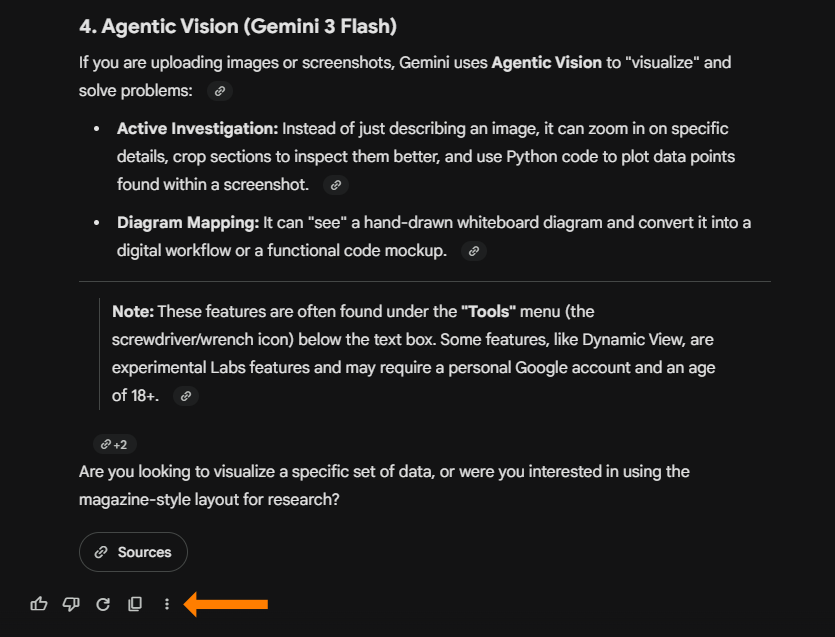
To use the feature, you will need an existing chat with at least one response from Gemini.

At the end of the response, there will be a vertical ellipsis (3 dots): A screenshot of a Gemini chat response titled "4. Agentic Vision (Gemini 3 Flash)." The text explains how Gemini uses Agentic Vision for active investigation and diagram mapping. An orange arrow at the bottom points to a three-dot "More" menu icon located next to the copy and share icons.
 

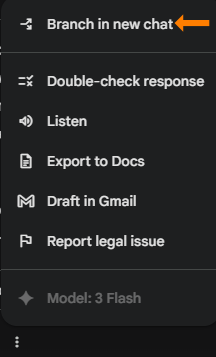
From the menu this pops up, select Branch in new chat (usually at the top):A screenshot of a dark-mode vertical menu in Gemini. The top option, "Branch in new chat," is highlighted by an orange arrow. Other visible options include "Double-check response," "Listen," "Export to Docs," "Draft in Gmail," and "Report legal issue." The footer indicates the model being used is "3 Flash."
 

Now you will have a new chat in your list that starts with “Branch “ followed by the original chat’s name:
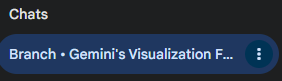
A close-up screenshot of the "Chats" sidebar in Gemini. A specific chat thread is highlighted in blue, labeled "Branch • Gemini's Visualization F..." with a three-dot menu icon on the right, indicating a conversation that was successfully branched from a previous session.


That’s it. Now you can take the 2 chats in completely different directions. If you need more than two, just branch again.


It’s a straightforward implementation of a powerful feature.


Have fun…


NotebookLM Weekend Masterclass - No Dates 1280x720

Less AI Friction, More Results

Fix the “why is this not working?” problem and start getting consistent outputs. 

Comments

Related posts