


If you’ve noticed that your Gemini sessions have been getting cut off more often than before, it might be worth your time to check your usage limits.
Usage Limits
Google changed the usage limits on May 17 and added a new page so you can track your usage at any time. They are now in-line with other large AI providers like OpenAI and Anthropic since they’ve moved to compute-based usage limits. This means that “premium models and features” will require more usage and will likely cause you to reach your limit faster.
Premium models and features include
- Pro models
- Thinking/Reasoning
- Image generation/editing
- Video generation/editing
- Music generation/editing
- Deep Research agent usage
- Deep Think (if you have access)
They put out a usage limits chart, but be aware that it doesn’t have hard numbers and may be hard to follow -
|
Plan |
Limit |
|
Without a plan |
Standard limits |
|
AI Plus |
2x higher than standard limits |
|
AI Pro |
4x higher than standard limits |
|
AI Ultra |
5x or 20x higher than AI Pro depending on your subscription |
Check Your Usage Limits
To check your current usage, open Gemini app → click on the Settings gear → and select Usage Limits from the menu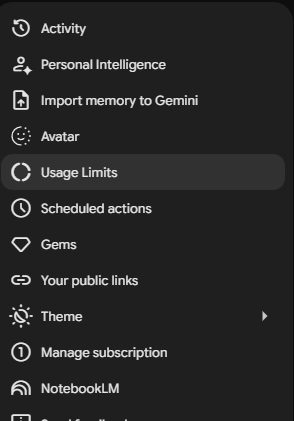
This will open a new page that will show you both your 5-hour and weekly limits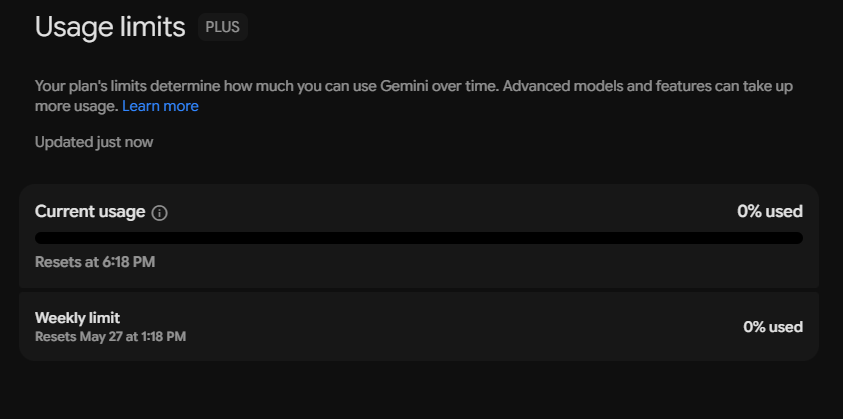
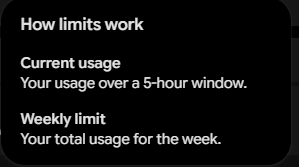
Your experience with Gemini will likely be different, so I recommend checking the usages often to avoid losing access when you need to do something important
I made a video too:

Finally… AI That Pulls Its Weight
Set up NotebookLM so it helps instead of giving you “almost right” answers.
Comments