

<div class="statcounter"><a title="Web Analytics" href="https://statcounter.com/" target="_blank"><img class="statcounter" src="https://c.statcounter.com/12795394/0/d64e9537/1/" alt="Web Analytics" referrerPolicy="no-referrer-when-downgrade">

AI Quick Tips 337: Bring some order to your NotebookLM sources

A graphic title card on a dark blue background. On the left is an orange robot head with a speech bubble containing the text 'AI'. To the right is a light blue circle containing the words 'Quick Tips'.

If you’ve been using NotebookLM for a while then you probably know that once you go over a few dozen sources, it becomes hard to keep track. People have been asking for a way to organize their sources for a while and the NotebookLM team has listened…

There is a new-ish feature (“new” only lasts for about 7 minutes in our fast-paced reality) in NotebookLM that will auto-organize your sources if you want it to. You don’t have to use it. Also, you can revert it back whenever you want.


One thing to note is that you must have at least 5 sources before the option becomes available.


You will know that the feature is available when you see this icon above your sources
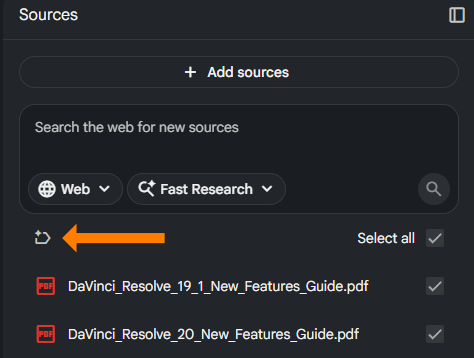
A dark-themed user interface snippet from NotebookLM showing a "Sources" panel. An orange arrow points directly to a circular counter-clockwise refresh/reset icon on the left. To the right of the icon, the text "Select all" is checked. Below it, two PDF files titled "DaVinci_Resolve_19_1_New_Features_Guide.pdf" and "DaVinci_Resolve_20_New_Features_Guide.pdf" are listed with checkmarks next to them.


Click on it and it will “think” for a lil’ bit and then put your sources into expandable categories
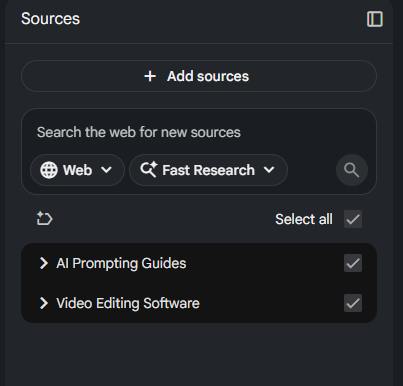
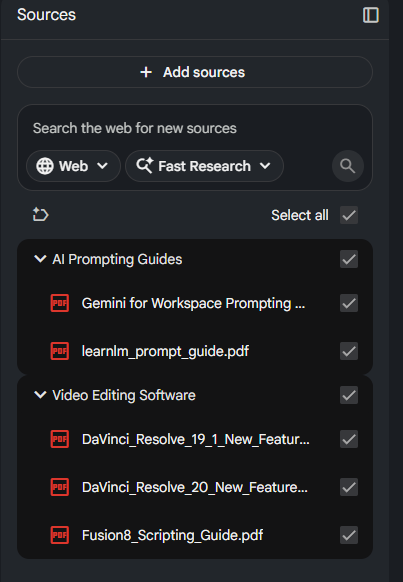
A dark-themed user interface snippet from NotebookLM showing the "Sources" panel after organization. The two individual PDF files are now grouped into two expandable category folders labeled "AI Prompting Guides" and "Video Editing Software," both of which are checked.A user interface snippet from a NotebookLM sidebar panel. It displays a dark gray layout with selected files and category options, showing active checklist boxes next to each item


Once your sources are categorized, you can do things like -

  • Move sources to different categories
  • Add sources to multiple categories
  • Rename sources
  • Rename categories
  • Add categories
  • Select/Deselect sources at the category level
  • Etc.


And remember, you can always undo the categories completely and go back to “list view” if you click on the icon again
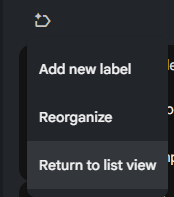
A detailed screenshot from the NotebookLM workspace application interface highlighting a quick action context menu. The menu provides selections for adding new labels, auto-reorganizing the source library layout, or reverting to a standard list view.


Watch our two videos demoing this new feature:



NotebookLM Weekend Masterclass - No Dates 1280x720

Upgrayyyed Your Weekend

Create a working NotebookLM setup that you can still use next week. 

Comments

Related posts