


Since NotebookLM has been rebranded as Gemini Notebook, they’ve had a steady stream of changes. The latest (as of when i’m writing this at least…) is interactive reports.
The way they have it set up, it looks like it will be a category of reports even though they currently only have one report there - Learning Overview.
To get to it, click on the reports button in the Studio section -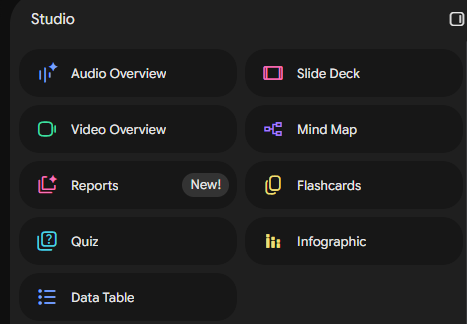
If it doesn’t automatically go to the interactive report tab, click on it to select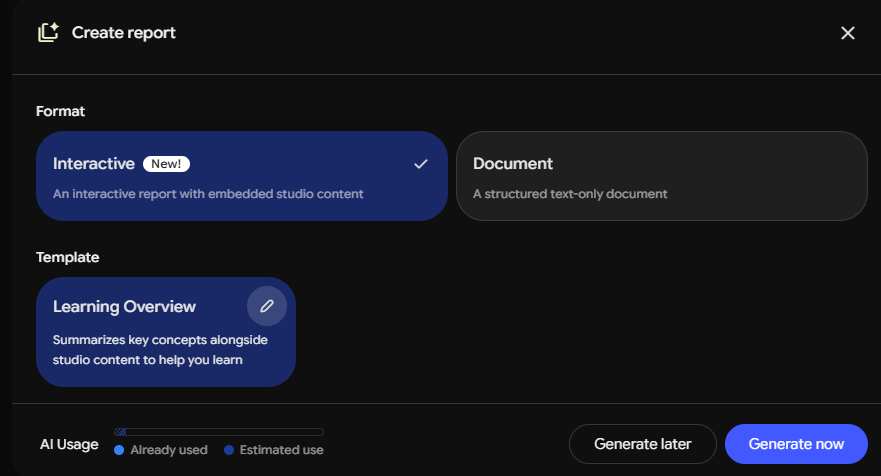
From what I’ve seen so far, the “interactive” elements are a table of contents on the left side that lets you collapse/expand it and it also lets you click on a section of the report and navigate to it (useful for longer reports)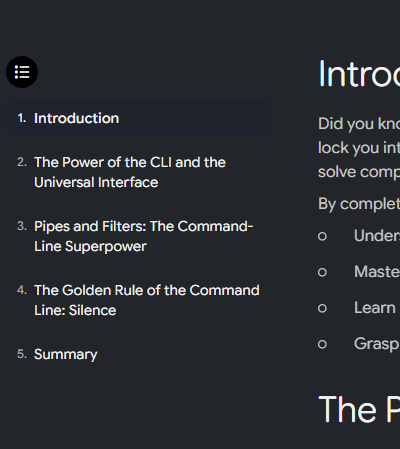
There are also multiple places in the report where they recommend different artifacts that might be helpful -
Master Gemini Notebook, Not Just the Updates
Features come and go. Learn the workflows that make Gemini Notebook one of the most useful AI tools you'll use. Join our next live cohort.
Comments