

If you aren’t familiar with Google Colab, it is an online platform that lets you write and execute code in a web browser. The reality is that it is WAY more technical than that. It uses Jupyter notebooks, Google’s cloud infrastructure, etc. but getting into all of it will go far outside of a “quick tip”.
So I’ll just focus on a recent update to Colab that might make people more interested in starting to use it.
Gemini Integration
It has Gemini integrated which you could probably guess since everything Google either has or is getting Gemini integration.
The interesting part (to me at least) is that the Gemini agent now allows custom instructions where you can basically create different personas within Colab.
Learning Mode
One of the built-in modes that they now have is called Learning Mode.
This is like learning mode in other AI tools (ChatGPT, Gemini app, NotebookLM, etc.) where it will guide you to the right answer instead of just giving you the answer.
If you are someone that has wanted to learn how to code, for example, now this gives you an environment that is already set up and it comes with a built-in tutor.
And it’s free (well, unless you need more capable hardware which won’t matter for a learning environment).
Using Learning Mode In Colab
To get to custom instructions and learning mode in Colab, click on this icon (on the right)
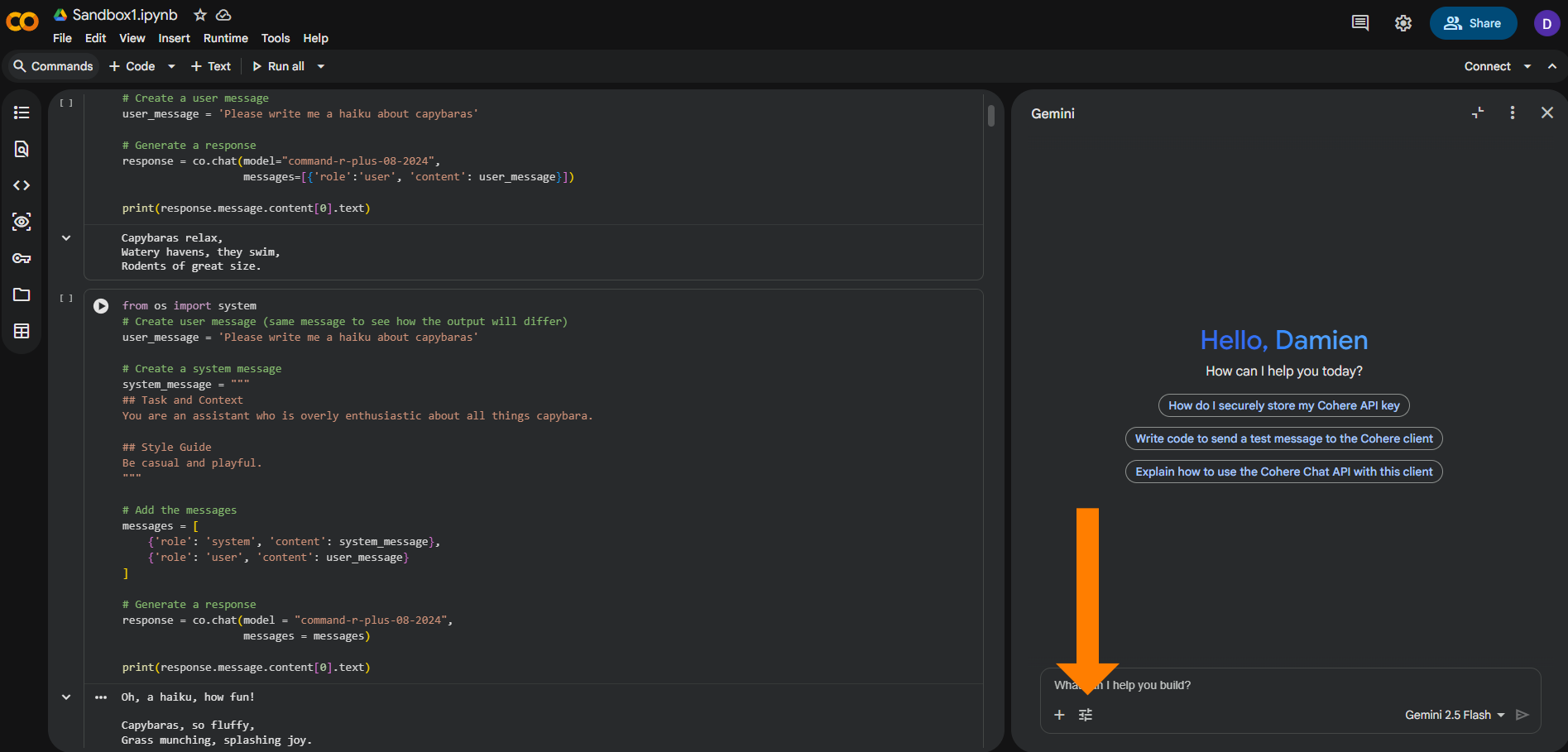
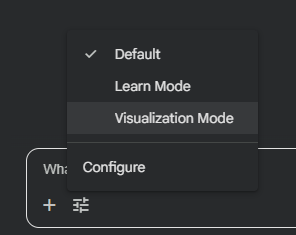
Then you can use one of the built-in modes (learn mode or visualization mode) or create your own custom instructions (under “Configure”)
Colab can definitely be an overwhelming platform if you haven’t used it before but adding Gemini and these new modes might make it inviting enough to try.
Choose your path
Looking for other ways to learn with these tools?
We have a few videos you should watch ↓
Use NotebookLM
Clear steps, real use cases—workflows that hold up after the weekend.
Comments