

<div class="statcounter"><a title="Web Analytics" href="https://statcounter.com/" target="_blank"><img class="statcounter" src="https://c.statcounter.com/12795394/0/d64e9537/1/" alt="Web Analytics" referrerPolicy="no-referrer-when-downgrade">

AI Quick Tips 357: Create entire slide decks in Google Slides with Gemini

A graphic title card on a dark blue background. On the left is an orange robot head with a speech bubble containing the text 'AI'. To the right is a light blue circle containing the words 'Quick Tips'.

If you’ve used Gemini in Google Slides, you’ve probably been underwhelmed. It wasn’t really up to par with its competition (i.e., Gamma, Canva, etc.)

They are hoping to change that with their recent updates.


Now within Slides, you can create “full, multi-slide presentations using Gemini”.

You can also

  • Match the style of another presentation
  • Use reference content from your Google Drive files
  • Use reference content from email and chat
  • Fully edit the slides afterwards


To get started, open Gemini within Google SlidesScreenshot of the Google Slides workspace with an untitled presentation open on a blank title slide. On the right side, the Gemini side panel is open under the header "Create stunning slides," displaying initial feature prompt options like "Create a presentation" and "Create a slide."
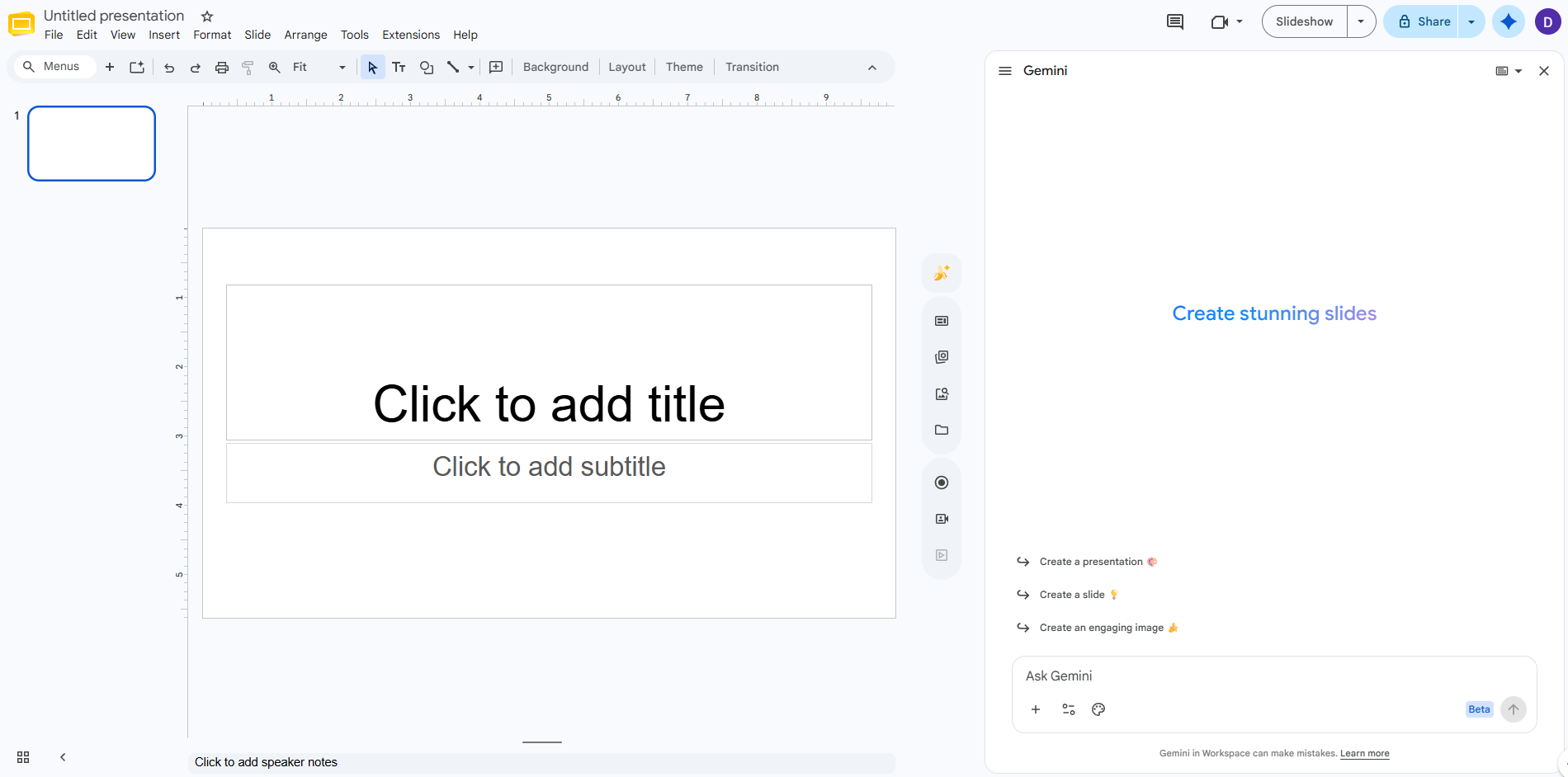
 

Then, either put in your prompt or click on “Create a presentation” and it will walk you through the process

An interactive shortcut button from the interface featuring a sparkle icon and the text "Create a presentation."


According to Google - “Through at least August 1, 2026, Workspace customers will get promotional access to higher limits for creating multi-slide presentations using Gemini in Google Slides…”



NotebookLM Weekend Masterclass - Cohort 2 no Dates

Less AI Friction, More Results

Fix the “why is this not working?” problem and start getting consistent outputs. 

Comments

Related posts